
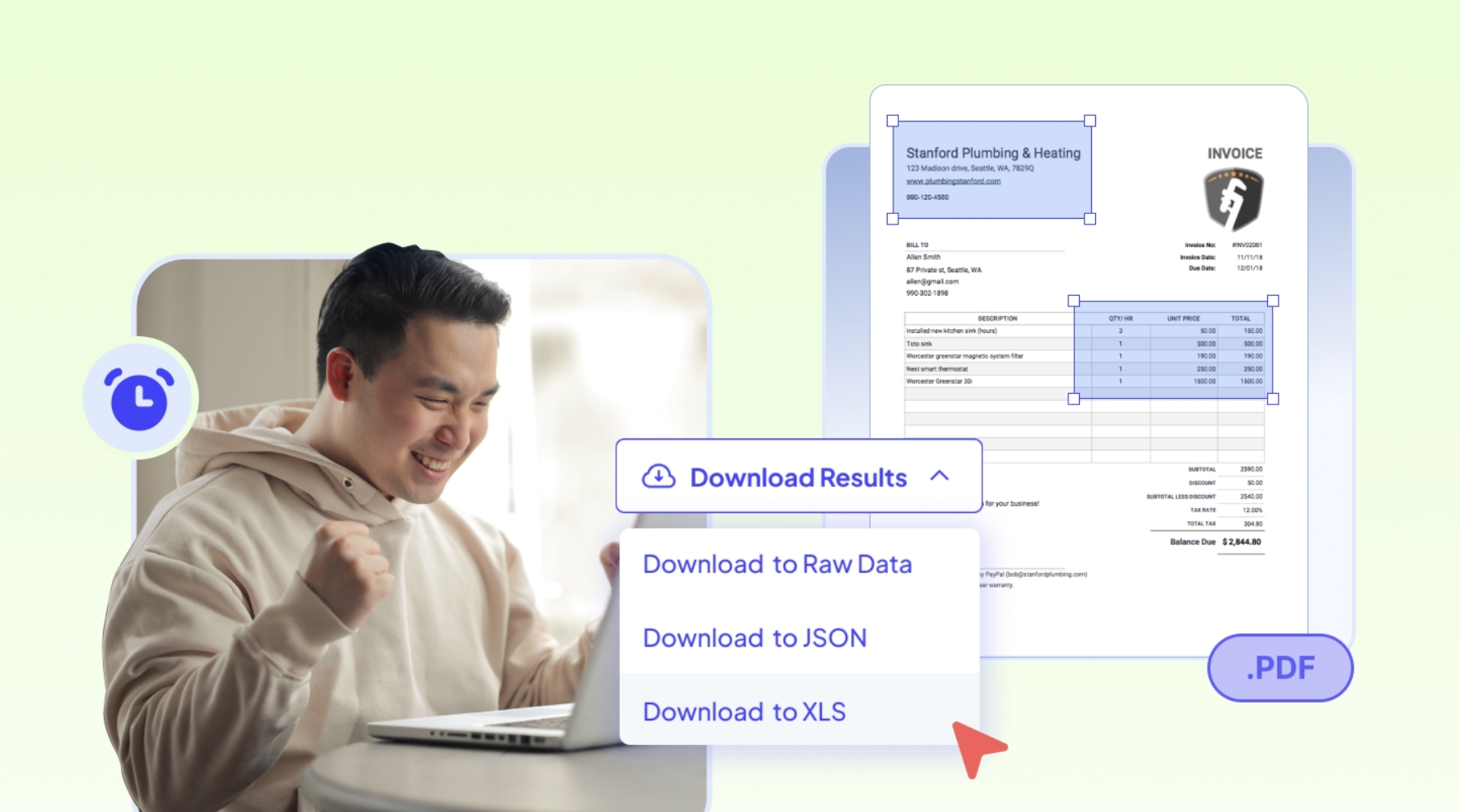

Having a hard time manually entering data from each invoice into your Excel database? Manual data entry is tedious and takes up valuable time that could be spent on more important tasks. Fortunately, you can now extract data from bulk invoices and organize them into one structured Excel file without manual grind.
How exactly is that possible? This article covers all the answers you need on which tool to use and the best way to automate it.
What is the most suitable tool to use?
Answer: The fastest way to extract data from documents is by using an OCR (Optical Character Recognition) tool. Choose Fintelite’s AI-powered OCR that is specially trained for processing documents at scale, allowing you to efficiently automate data extraction from large volumes of invoices with great precision.
How does Fintelite AI OCR automate data extraction from invoices?
Answer: It only takes a few simple steps to capture all the required data from invoices with Fintelite AI OCR. Simply upload your scanned or PDF invoice, and it will extract the contained payment details automatically.
What type of invoice formats can Fintelite AI OCR extract?
Answer: As mentioned before, Fintelite AI OCR accepts invoice in any formats, such as scanned image or PDF. This is especially useful, as vendors may send invoices in either printed or digital formats.
Is Fintelite AI OCR capable of reading data from various invoice designs?
Answer: Yes, Fintelite AI OCR works without you having to manually set anything up for different invoice layouts. With smart AI-powered recognition, it automatically understands and extracts data from various invoices you receive.
Is Fintelite OCR customizable to extract specific invoice data?
Answer: Yes, you can easily define which key fields from the invoice you want to extract. It doesn’t require any coding, there’s a customization menu available on the dashboard that you can easily use to select, adjust, and manage all the necessary data according to your needs. Here are the invoice details you can effortlessly extract:
- Invoice number and date
- Vendor name and address
- Line item description
- Quantity
- Subtotal and total amount
- Due date
How to export multiple extraction results into one excel file?
Answer: Once the data extraction process for all invoices is complete, head over to the Scanned Files menu and select multiple results you want to export at once. Then, click Download XLS and choose Merged File to combine all selected extraction results into a single Excel document.
Is it possible to adjust the formatting of Excel columns?
Answer: Yes, Fintelite AI OCR also supports custom reporting templates, allowing you to tailor the Excel output to match the standard template your team usually uses. For further customization to meet your specific needs, our team is always ready to help!
