
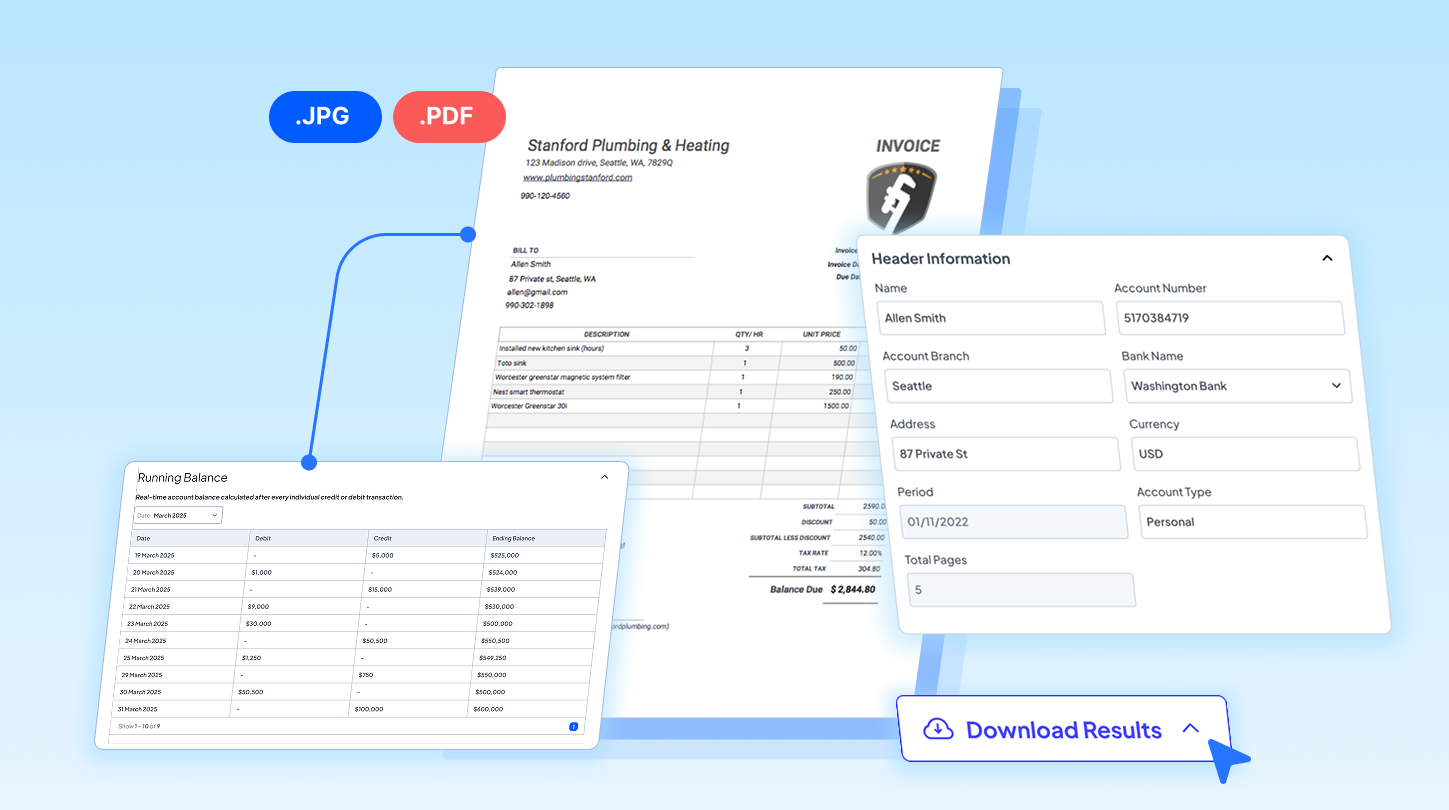

The most straightforward way to handle invoice data entry is to simply type everything in by hand. But when you have piles of invoices stacked on your desk, that simple task can quickly become tedious and time-consuming. Mistaken inputs, back-and-forth fixing, and delays are bottlenecks that often happen when you still rely on manual invoice data entry.
In this guide, we’ll tell you how to automate invoice data entry, whether in a spreadsheet or sent straight into your database. Covering three easiest ways, you’ll gain hacks to save more time and boost productivity.
Option 1: PDF Import in Excel
If Excel is where your business keeps invoice data, this first method may be just what you need. Use Excel’s built-in PDF import feature that is now available in Microsoft Office 2013 version and later. Powered by OCR, it can help you automatically extract data from PDF invoices and import it straight into your spreadsheet without having to install any additional plugin. But note, it may struggle with complex table structures or low-quality scans, which can lead to missing or misplaced data.
Tutorial:
- Create a new blank sheet or open your existing sheet where you want to put the invoices.
- Go to the “Data” tab on the top menu and select “Get Data.”
- Several options will appear, click “From File,” then choose “From PDF.”
- Browse and choose the PDF file of the invoice, then click “Import.”
- Excel will analyze the file and display a list of detected tables. Select the table that contains your invoice details.
- Click “Load” to insert the extracted table into your worksheet.
- Review the imported data and make any necessary adjustments or formatting fixes.
Choose this method if you:
- Mostly handle simple invoice layouts
- Small teams process only small batches of invoices
Option 2: AI-Powered Invoice Extraction
AI takes invoice data entry automation to the next level. With the combination of AI and OCR, experience seamless invoice processing without the usual hassle.
Especially for businesses requiring large-scale invoice processing every month, AI tools like Fintelite work best to automate routine tasks. Fintelite comes with end-to-end automation to pull and push transaction details from multiple invoices to the business accounting system, all at once. With flexible export options, you can also generate invoice extract into a specific format you prefer like JSON, XLS, or CSV. Scanned invoices? Handwritten invoices? No problem. Fintelite AI efficiently reads data from them with high accuracy. It also supports customization that lets you set up specific rules to extract only the data you need. Here’s how to use it.
Tutorial:
- Drag and drop your invoice file into Fintelite or click “Upload” to add it.
- Click “Process” and Fintelite will automatically extract the data using AI-powered OCR.
- Review the extracted information and make any adjustments if needed.
- Click “Download” to save the data in your preferred format, or select “Export” to send it directly to your connected apps or platforms.
Best suited for:
- Enterprise or mid-sized businesses with high-volume invoice processing
- Teams handling invoices with varying designs and layouts
- Specialized use cases (e.g: Accounts Payable)
Option 3: Online PDF Conversion
When it comes to automating invoice data entry, using supporting tools like online PDF converters can be a convenient option. These web-based services let you upload a PDF invoice and convert it into Excel, CSV, or other ready-to-input formats that are compatible with your system. However, keep in mind that accuracy varies widely between tools, and some may pose data privacy concerns that you must pay attention to before processing any confidential financial information.
Tutorial:
- Browse online PDF-to-Excel converters and choose one that fits your needs.
- Upload the PDF invoice you want to convert.
- Select your output format, such as Excel or CSV.
- Click “Convert” and wait for the tool to process your file.
- Download the converted file once the process completes.
- Import the results into your database system.
Choose this method if you:
- Only need quick, occasional invoice extraction
- Work with clear and structured invoice formats
