


Banks commonly send a statement in PDF documents, which can be difficult to process due to its fixed format. For easier handling, converting it into a more analysis-ready format is the solution. JSON, which stands for JavaScript Object Notation, is an easily parsed format ideal for data analysis. While managing financial data from a PDF bank statement takes a lot of time and effort, JSON provides more convenience. Its key-value pair format enables data analysis tools and applications to map the data more efficiently. To convert bank statements to JSON accurately, you can use an OCR tool.
OCR has the capability to extract every data from simple to complex documents accurately, including bank statements. Let’s take a look at how you can automatically convert bank statements to JSON, without worrying about losing any details.
Why You Should Convert to JSON
JSON is a lightweight data format commonly used for storing and exchanging data. This format is ideal for web applications and data analysis, as it is both easily readable by humans and computers. While PDF is a fixed-format document, JSON is a more flexible format to work with, allowing easier organization of data. Given these characteristics, here’s how using a JSON file can make your financial analysis easier:
- JSON is compatible to process in various programming languages and software tools
- JSON has predefined data structures with key-value pairs that allow easy query and analysis
- JSON files are relatively small in size which perfect for storing or processing large financial datasets
- JSON can represent various types of data, including numbers, strings, arrays, and objects
- JSON organizes data in a clear and hierarchical way, making complex financial data easier to understand.
How OCR Can Simplify the Conversion
OCR (Optical Character Recognition) is a technology that can parse non-editable images or documents into machine-readable formats. Until today, many companies have widely adopted OCR to automate their bank statement processing. OCR automation provides significant benefits over manual data extraction, such as faster processing times, higher accuracy rate, and lower costs that you can instantly experience from the first use.
At Fintelite, we use AI to deliver an advanced OCR tool that intelligently reads data from varying layouts of bank statements, enabling you to process them all efficiently with just one tool. Companies dealing with large volumes of bank statements daily can also benefit from Fintelite AI OCR as it is highly scalable and capable.
Convert Bank Statements to JSON In 3 Simple Steps
Get a JSON copy of your bank statement in simple steps using Fintelite AI OCR tool. Simply upload your document, and the automation will take care of the rest. Get your access to the dashboard, prepare your bank statement, and follow this tutorial as we will walk you through step by step.
Step 1: Upload your bank statement
Start the process by uploading the bank statement you want to convert.

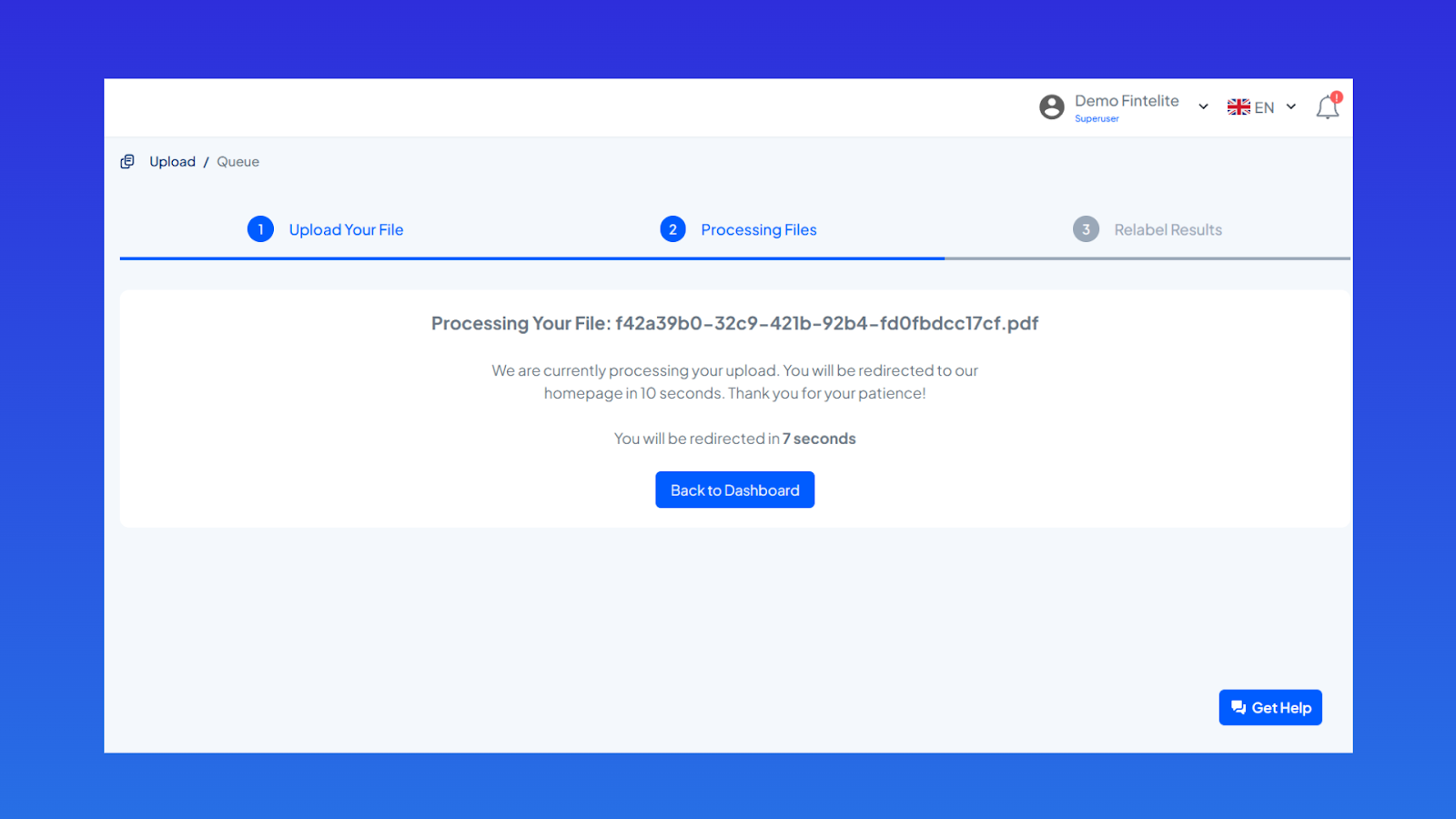
Step 2: Wait a moment for the process to complete
The process will take just a few seconds until your data is completely converted into JSON
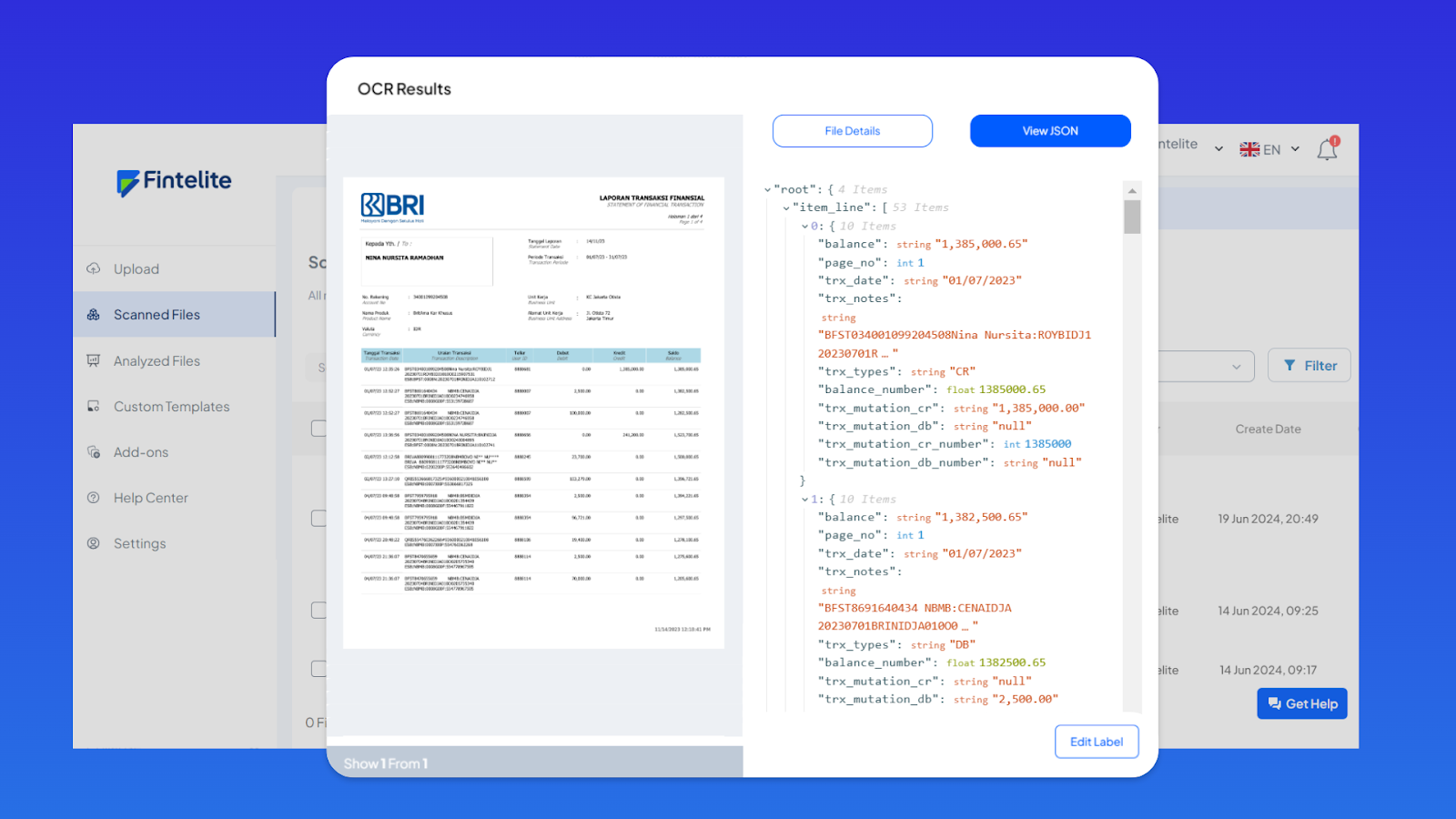
Step 3: Receive your JSON result
Once the process is complete, go to the results page. Click your file to access the JSON output of your bank statement for use in your systems or applications.
Ready to Try It Firsthand?
In summary, converting bank statements to JSON improves the speed, accuracy, and flexibility of financial analysis. In JSON, complex financial data in bank statements can be easier to understand, whether by humans or computers. This file format is also useful for various financial tasks, like performance analysis, risk assessment, or underwriting.
Interested in automating bank statement conversion to JSON for better financial analysis?
Book a demo to see how Fintelite OCR can help you extract financial data 10x faster.
