


Amidst the extensive paperwork and the limited time you have, all you need is an advanced OCR tool that automatically extracts every information you need into the system. Automated data extraction from documents is not only about faster processing, but also ensuring it can accurately derive data with matched context. Fintelite AI provides flexible automation in the way you can tailor specific OCR rules to extract only data that matters through fast, simple setup. Specify which data fields you want to extract, and derive consistent output as you desire with high accuracy across various document designs.
Now, let’s see how this feature benefits you and how to get started with it.
Advantages of Custom Extraction Rules
At Fintelite, experience effortless OCR template customization without writing a single code. Easily create custom data extraction rules by defining data points you want to extract. Once your templates are set up, you can process documents more efficiently and accurately, unlocking benefits such as:
1. Deliver higher accurate result
This approach is most suitable for those who deal with document types that commonly have varying layouts and data structures. Once you activate a pre-defined extraction template in the system, our recognition model can extract consistent data with greater accuracy.
2. Specific data extraction
Flexibly customize OCR rules to extract only the information you need. Simply specify what data to capture digitally. You only need to set it up once and automate it endlessly.
3. Reduce manual workarounds
Minimize the need for manual reformatting by extracting only the data you need. Customized templates ensure your results are structured and ready to use from the start.
How to Create Custom Templates (with Pictures)
Learn how to create a new OCR data extraction template for your document with these easy step-by-step instructions.
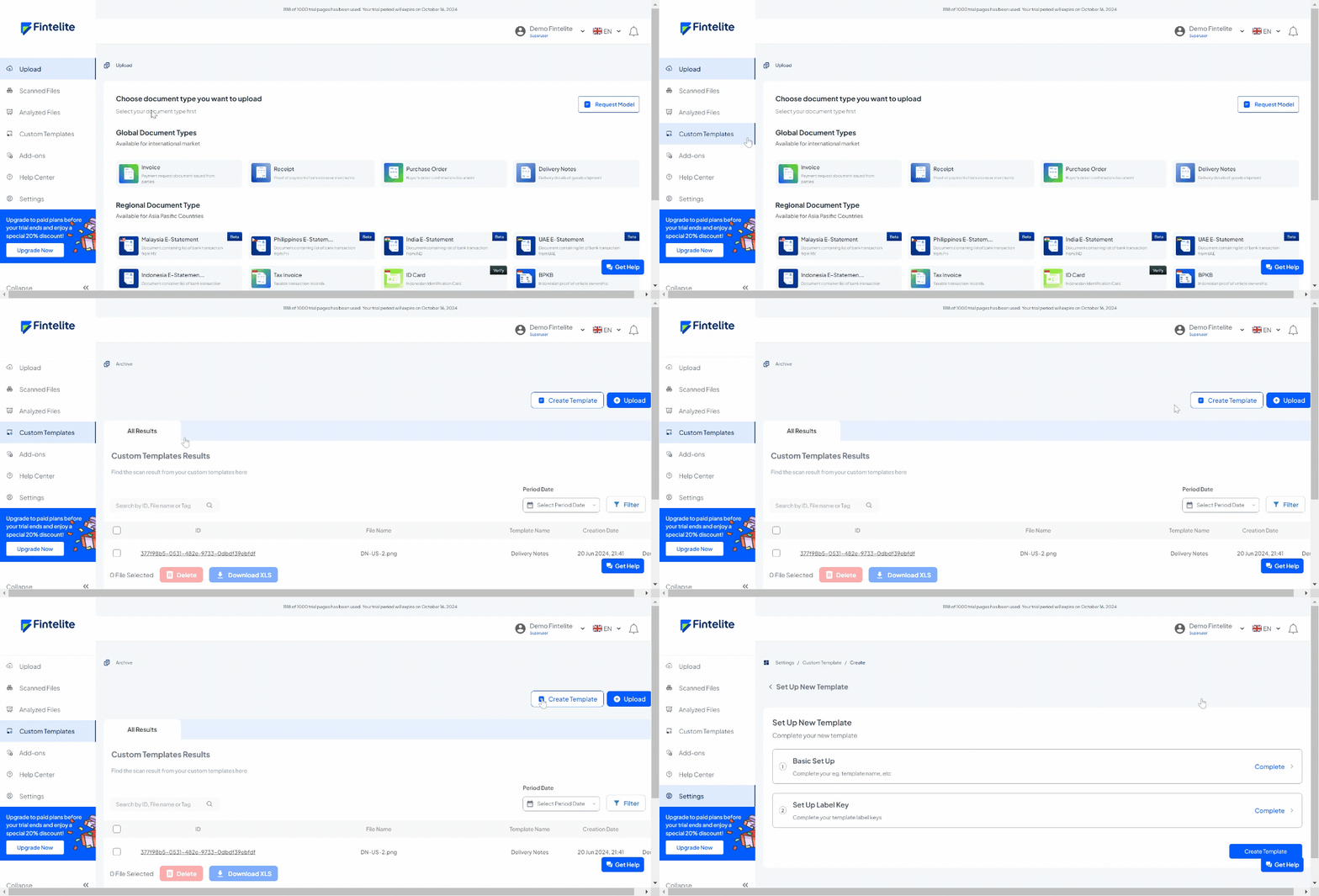
Step 1: Go to custom template menu
Once you enter our dashboard, the first thing you need to do is to go to the custom template page. Simply click the ‘Create Template’ menu to initiate the customization process.
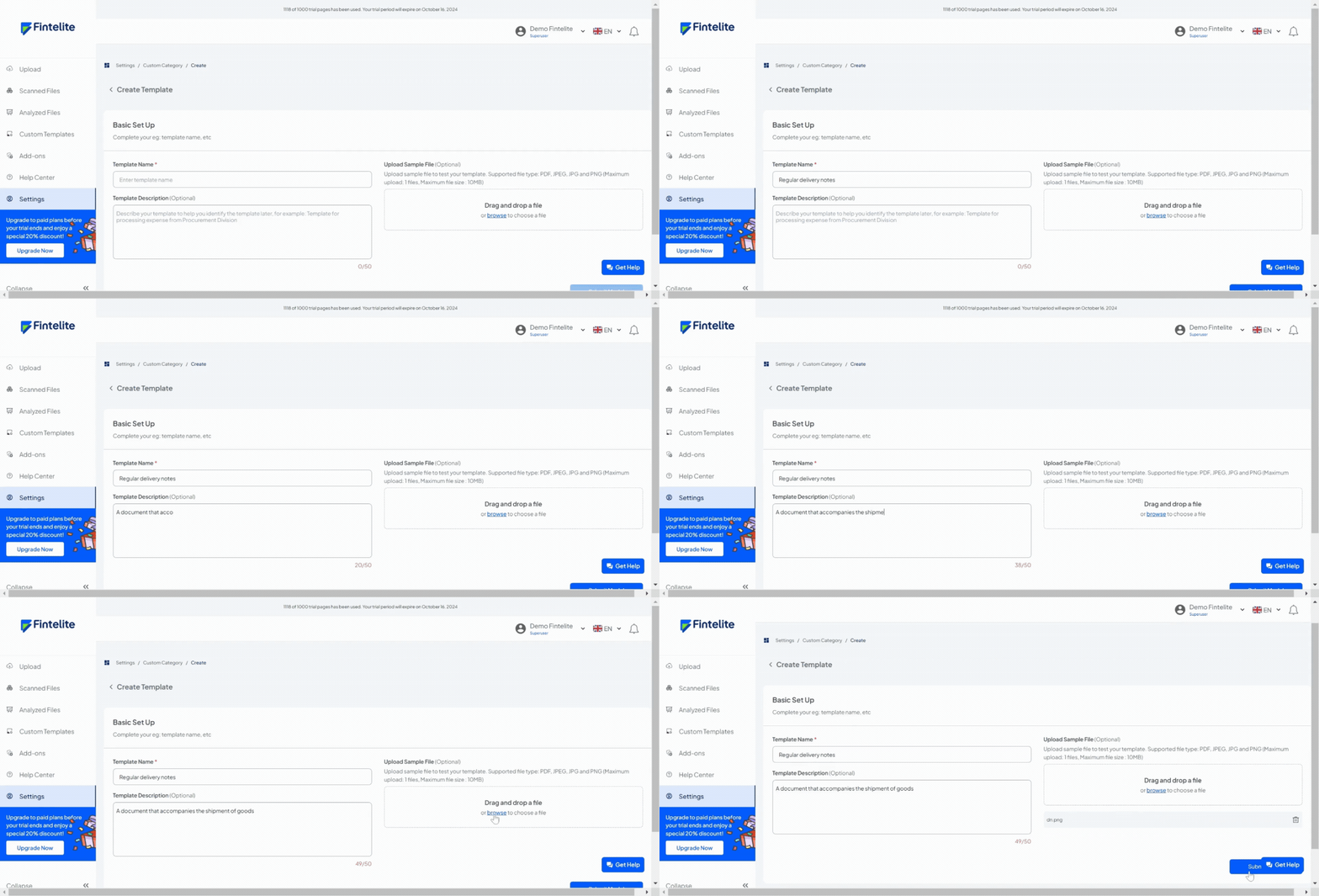
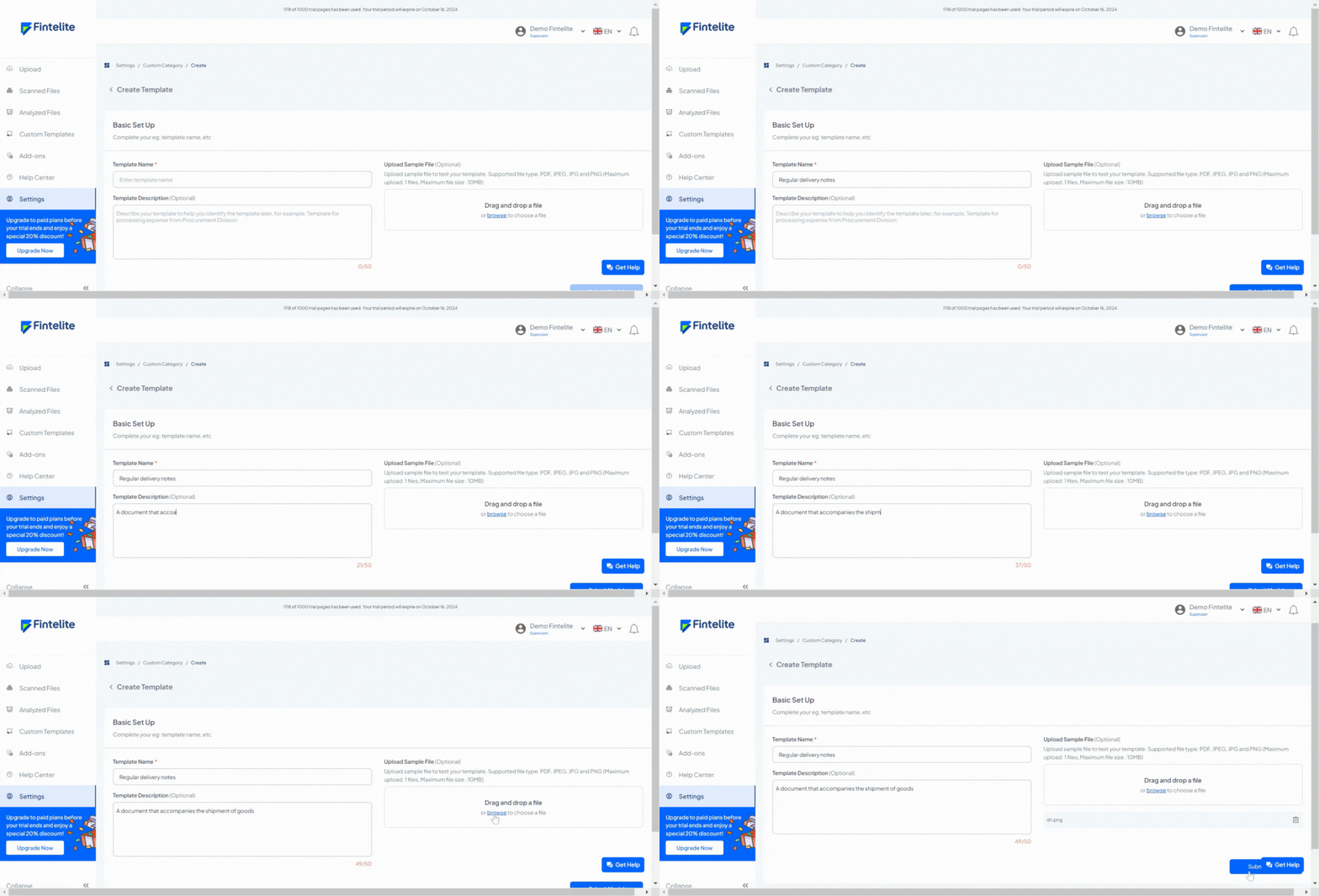
Step 2: Basic set up
There are two sections of information to fill in. The first section requires you to complete the template name, description, and upload the sample file. Submit and continue to the next section if all columns are filled in.
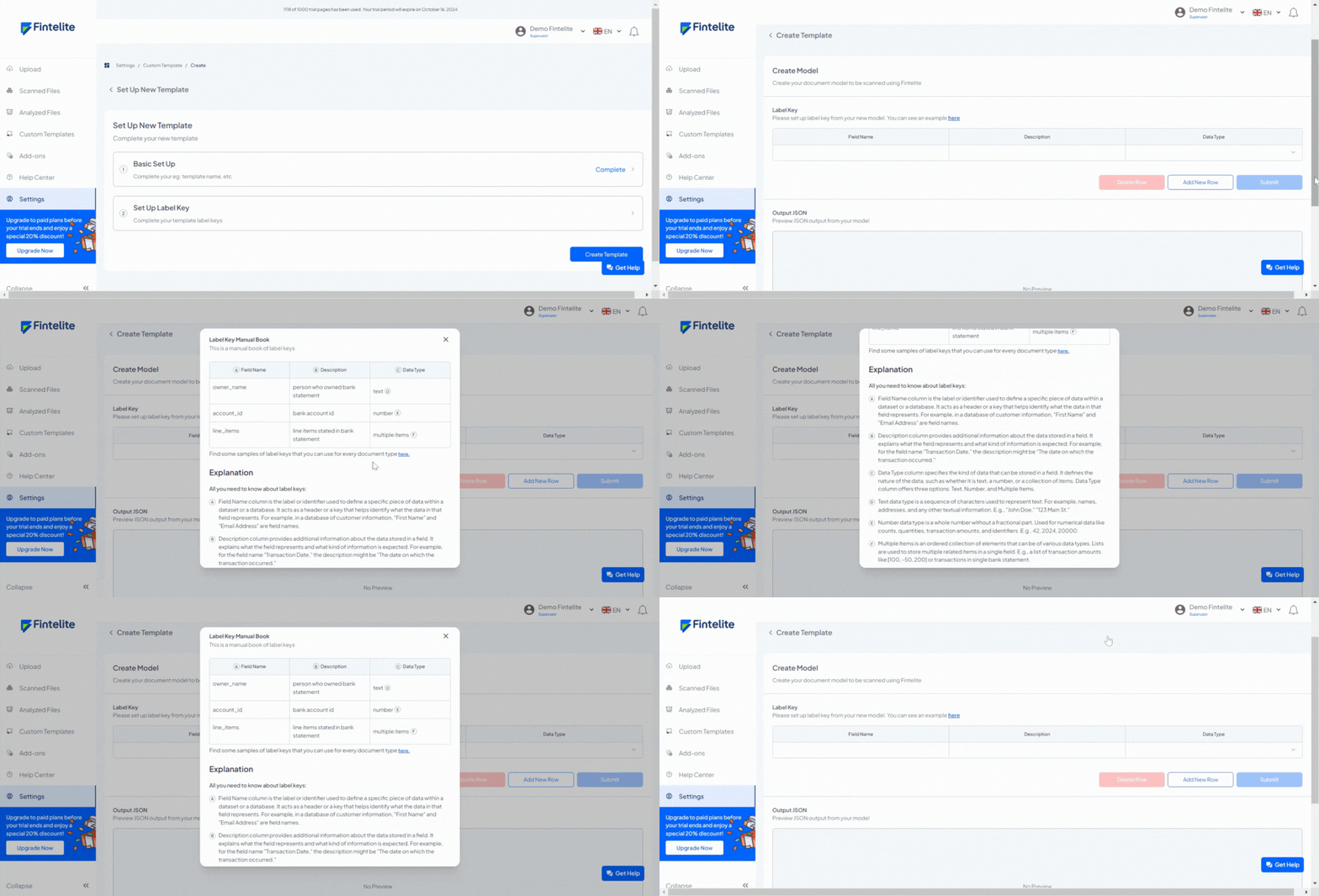
Step 3: Create model
Next, the second section requires you to define what key labels you want to extract. If you find it difficult to determine, a manual book of label keys based on each document type that is provided here might be helpful.
Step 4: Define data to extract
For instance, you want to extract ‘seller_information,’ which refers to ‘the list of information including the name, address, and telephone number of the merchant as the sender,’ and its data is in ‘list/text/string’.
Step 5: Sample testing
To check if it already works properly, click submit and review the JSON result below. Now that all sections have been completely filled in, you can finalize the custom template by clicking save.
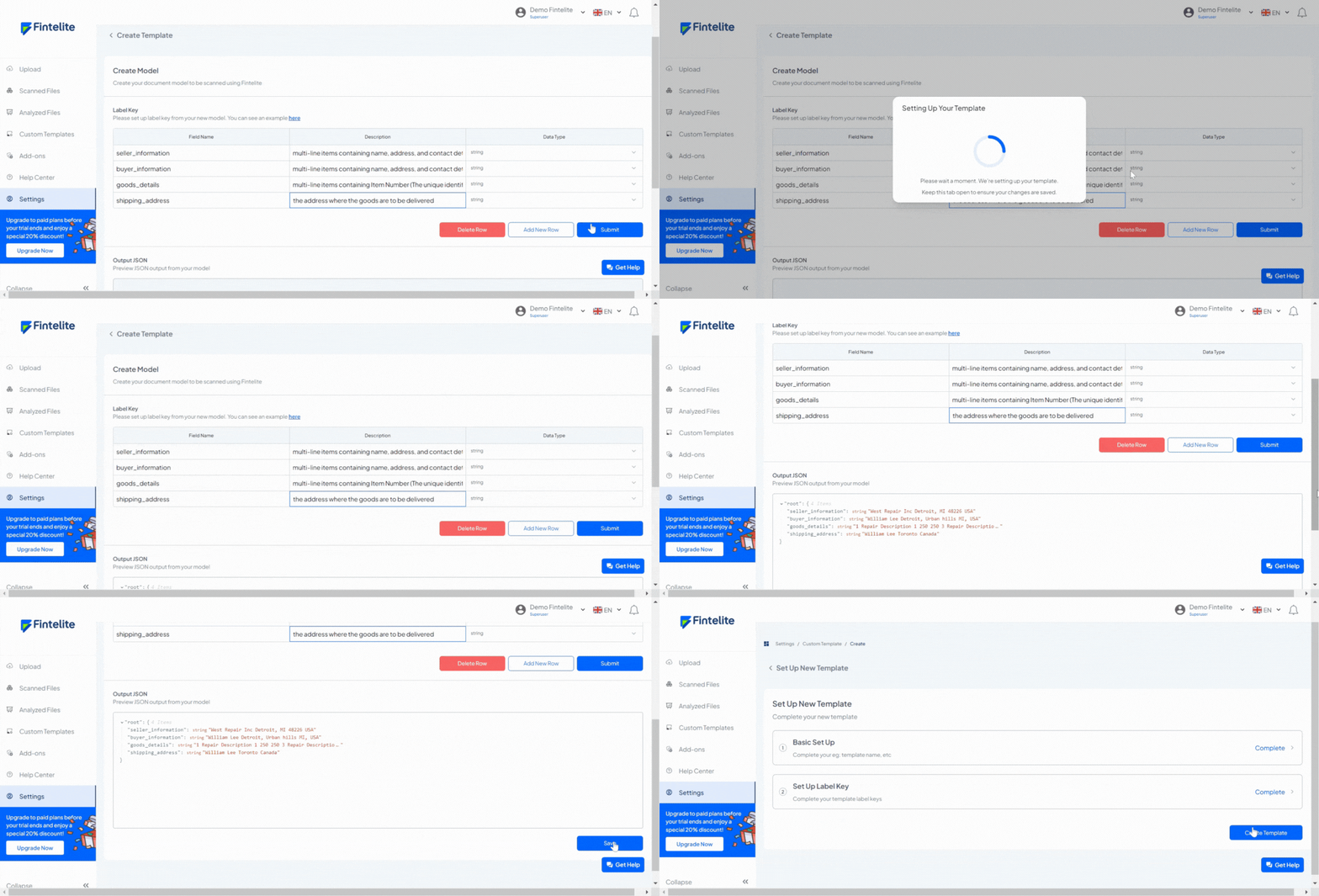
Step 6: Your custom OCR model is ready to go!
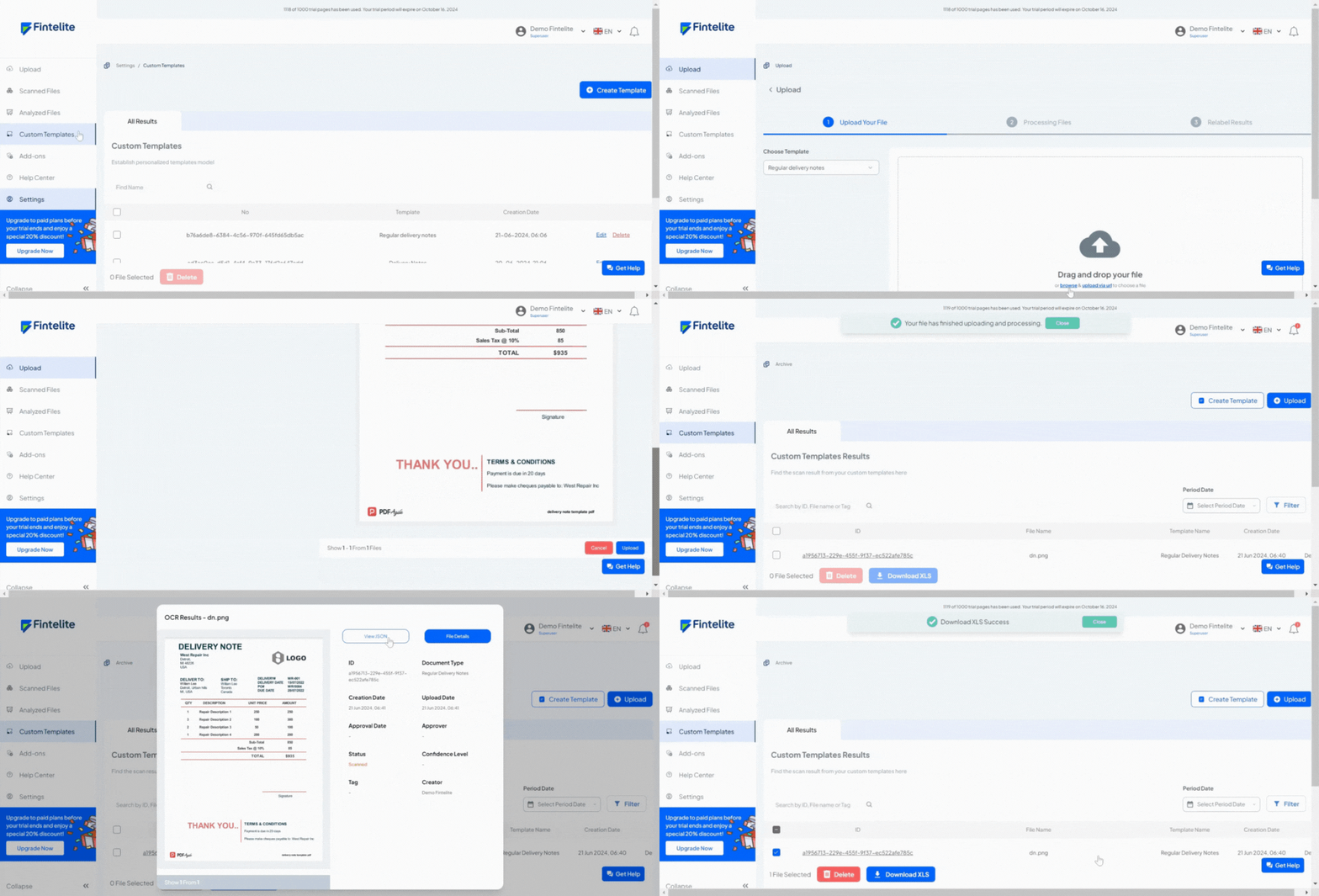
To start processing documents with your tailored templates, go back to the custom template page and click the upload menu. Choose which template you want to use, drop your file, and continue to process. Within a few seconds, your data extraction result will be available and ready to export.
Ready to try it firsthand?
Our AI-Powered OCR allows you to tailor personalized data extraction template for any document you want, including which details to extract and how they should be labelled.


